

Which plugins are genuinely active in your multisite network?
The network backend lists all installed plugins and marks the network-activated ones. About the local activations of the individual sites, it tells you nothing. Here are three routes to get at it anyway, plus our own plugin that answers the question permanently.
Network-activated and locally activated are two different things
All of a network's plugins sit in the shared directory wp-content/plugins. But they get activated on two levels, and that's exactly where the problem comes from.
A network-activated plugin runs on every site. Site admins see it in their own backend as "network active", with no switch and no settings. A locally activated plugin, in contrast, was switched on by the admins of a single site themselves. It runs only there, and in the network backend this decision shows up nowhere. Not even as a hint.
What the network backend answers for you
- Which plugins are installed, i.e. sit on the server
- Which of them were network-activated and thus run everywhere
- Whether an update is available for a plugin
What stays open
- Whether a plugin not running network-wide is active anywhere at all
- On exactly which sites it was switched on
- Which plugins have been riding along for years without a single site using them
In the network plugin list, a locally activated plugin shows the same as one nobody has touched in four years: "Network activate". With five sites you can still click through that quickly. With fifty, not any more.
Where the missing overview concretely hurts
The gap doesn't stand out constantly. It stands out exactly when it's inconvenient: during the security audit, before a big update, when taking over someone else's network.
Typical situations from our projects
- Cleaning up: a plugin should go. Nobody can say whether a site still depends on it, so it stays. Together with its attack surface.
- The security audit: a vulnerability is published for a plugin. The first question is which sites are affected. The backend doesn't answer it.
- Update risk: before a larger update you want to know how widely it will hit. Without a usage overview, the testing effort can only be guessed.
- Consolidation: three plugins solve the same task because three site admins decided independently of each other. That only becomes visible side by side.
- Migration: a site is to leave the network. What it actually needs is written down nowhere.
- Licences: a premium plugin keeps being renewed even though the site it was bought for has been offline for two years.
Behind it sits the same question every time. WordPress even knows the answer. It just brings the data together nowhere.
How to find out without an additional plugin
The data sits in your database; you don't have to install anything for it. Three routes, sorted by effort.
Variant 1: click through every site individually
Open each site in the network backend under "Sites", switch to the plugin menu, take notes. Needs no access beyond the backend, and it's the only route managing entirely without technical knowledge. In return, you redo it with every new question, and as soon as a site admin changes something afterwards, your list is wrong again.
Variant 2: WP-CLI
With shell access it goes considerably faster. WP-CLI knows multisite; the --url parameter switches into the context of a single site.
# List all sites of the network
wp site list --field=url

# Network-activated plugins
wp plugin list --status=active-network

# Locally activated plugins of a single site
wp plugin list --status=active --url=https://example.com/shop

# And the same for all sites at once
for url in $(wp site list --field=url); do
  echo "== $url"
  wp plugin list --status=active --field=name --url="$url"
done
Back comes one list per site. For a one-off inventory that suffices. For comparing it's of little use, because you have to scroll through all the blocks for every single plugin.
Variant 3: directly in the database
Without a shell, but with phpMyAdmin or an SQL client, you reach the same values. Every site has its own options table wp_<id>_options; for historical reasons site 1 is simply called wp_options. The network-wide activations sit centrally in wp_sitemeta.
-- All sites with their blog_id
SELECT blog_id, domain, path FROM wp_blogs ORDER BY blog_id;

-- Locally activated plugins of the site with blog_id 4
SELECT option_value FROM wp_4_options WHERE option_name = 'active_plugins';

-- Network-activated plugins
SELECT meta_value FROM wp_sitemeta WHERE meta_key = 'active_sitewide_plugins';
Out come serialised PHP arrays. Readable, if it has to be. What all three routes share is the real catch: they deliver a snapshot you collect anew at the next question.
Multisite Matrix: the plugin-site matrix in the network backend
We look after multisite networks ourselves and have asked the question "is that actually still running anywhere?" often enough. At some point we answered it properly once: as a plugin. Multisite Matrix sits free of charge in the official WordPress directory.
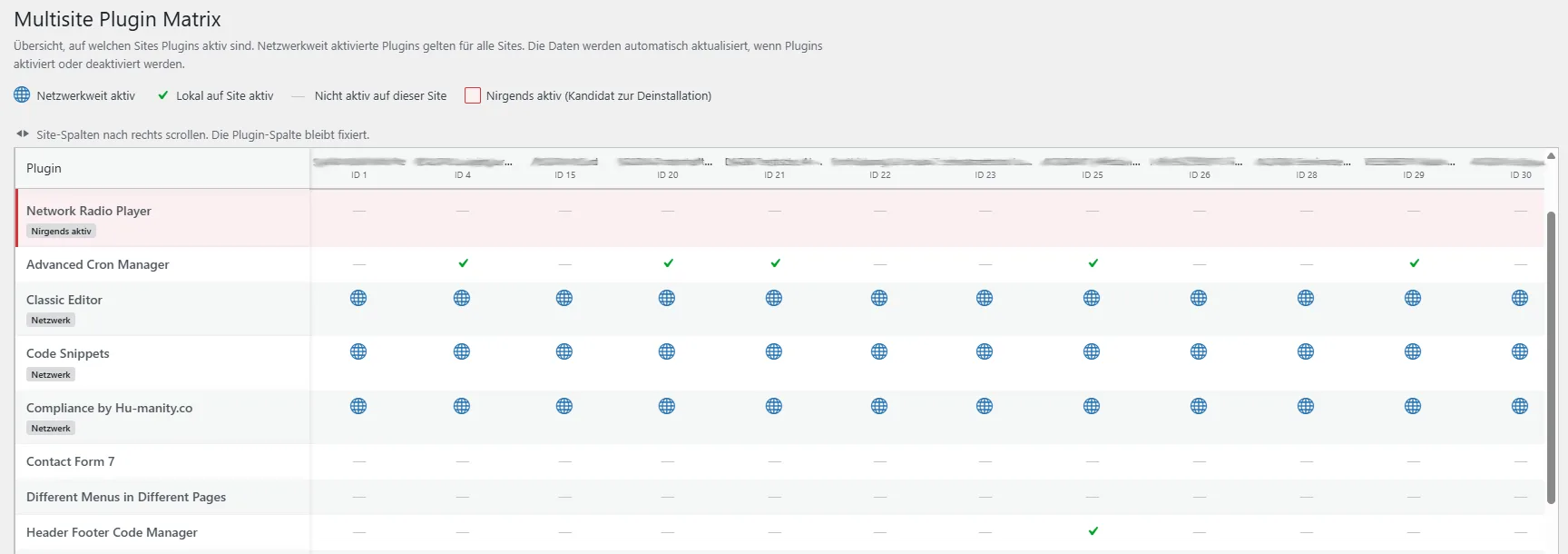
Plugins sit in the rows, sites in the columns. Read a row and you see one plugin across the whole network. Read a column and you see one site completely. Rows entirely without hits are colour-marked. Those are the candidates for uninstallation.
What the plugin adds
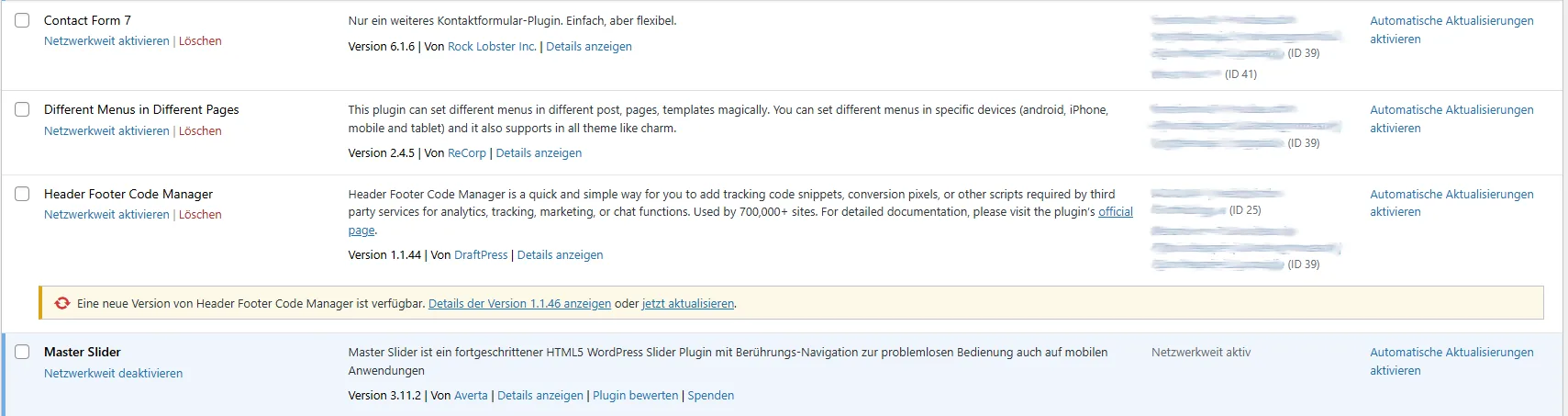
- An "Active on sites" column in the network plugin list, i.e. where you already are anyway
- A dedicated matrix page across all plugins and all sites, with a fixed plugin column and horizontally scrollable site columns
- Separate symbols for network-activated and locally activated on a site
- A marker for plugins running on not a single site
- Direct links from every hit into the plugin screen of the site in question
Our own plugin · free
Multisite Matrix in the WordPress directory
Install, activate, done. There is no settings page. Runs from WordPress 5.8 and PHP 7.4, open source and free of charge. We keep maintaining it because we work with it ourselves.
To Multisite Matrix on wordpress.orgWhat the plugin deliberately doesn't do
Whatever rides along in a production system's network backend should be able to do as little damage as possible. That's why the feature set is deliberately kept slim.
- It only reads. Activating and deactivating still happens in the network backend; the matrix links you into the fitting screen.
- No external requests. No telemetry, no calls to the outside, no cloud.
- Visible exclusively to network administrators, checked via the manage_network_plugins capability.
- Only on multisite installations. On a single installation there'd simply be nothing to display.
- The mapping is cached for up to an hour and discarded immediately as soon as a plugin is toggled or a site is created or deleted.
So it's not a plugin manager. Management still happens where WordPress intends it.
Cleaning up a multisite: our approach
When we take over a grown network, the plugin landscape is usually the point where the most risk can be shed with the least effort. The overview is only the first step.
Our order of operations
- Inventory: which plugin runs on which site, what is network active, what nowhere.
- Sort the candidates: what's active on no site can usually go. What runs on only one, we look at more closely.
- Resolve duplications: merge several plugins for the same task into one.
- Check on staging: deactivate on a copy first and see what's missing in the frontend. Shortcodes and blocks often only stand out there.
- Remove cleanly: deactivate, check for data remnants, delete. And write down why.
- Keep it repeatable: the overview stays in the backend, so the next round doesn't cost a week.
For our maintenance clients this runs as part of the ongoing WordPress maintenance. If you run a network and don't know exactly what's active in it, take a look with the plugin or simply get in touch.
Frequently asked questions about plugins in a multisite
Why doesn't WordPress itself show which plugins are active on which site?
What's the difference between network-activated and locally activated?
How do I find out which plugins I can safely delete?
Does it also work without an additional plugin?
wp plugin list --status=active --url=… per site) or with an SQL query on active_plugins in the options tables. Both are described with examples above. The difference lies not in the information but in the effort: as a one-off inventory it works well, as a permanent overview it doesn’t.Does Multisite Matrix also work on a normal WordPress installation?
Can the plugin activate or deactivate plugins?
Does the plugin slow down the backend with many sites?
Related topics
Having WordPress plugins developed
Multisite Matrix came about because no existing plugin did exactly what we needed. In client projects it works the same way. More on WordPress plugin development.
WordPress maintenance & security
Every plugin sitting in the network without reason is attack surface and update effort. More on WordPress maintenance & security.
WordPress hosting
A network places different demands on the server environment, backups and domain handling than a single website. More on WordPress hosting.
Ready for your WordPress project?
Tell us about your project. We'll get back to you promptly with an honest assessment.